
Scanning Documents from Phone to Computer Using the Genius Scan App
8/23/20252 min read
Scanning Documents from Phone to Computer Using the Genius Scan App
Download and Install the Genius Scan App:
Go to your device's app store (Google Play for Android or Apple App Store for iOS).
Search for “Genius Scan”.
Download and install the app on your phone.
Scan the Document:
Open the Genius Scan app.
Tap the camera icon, usually located at the bottom center of the app interface.
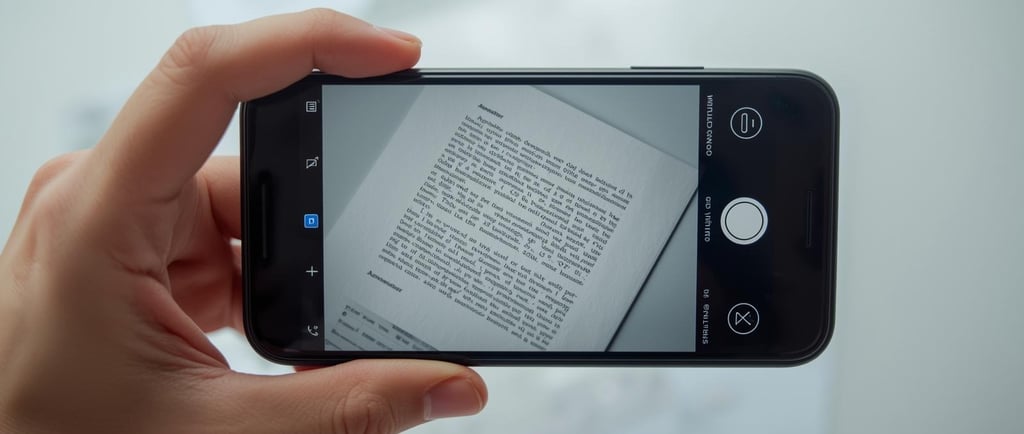
Position your phone over the document you want to scan. Ensure good lighting and try to capture the document's edges within the frame.
Snap a photo using the app. If the app detects the document's borders accurately, it will auto-crop and enhance the image. If not, you can adjust the borders manually.
You can scan multiple pages by repeating the process. These will be added to the same document within the app.
Enhance the Scan:
Once you've captured the document, Genius Scan will automatically enhance the image to make it clearer.
You can adjust the enhancement settings by selecting between options like "Color", "Black & White", or "Photo".
Save the Document:
After scanning and enhancing, tap the checkmark or save button.
You can rename the document for better organization.
Transfer to Your Computer:
Option A: Email Transfer:
With the scanned document open, tap the share icon (usually represented by three interconnected dots or an outward pointing arrow).
Choose the “Email” option.
Enter your email address and send the document to yourself. Retrieve it from your computer's email client.
Option B: Cloud Storage Transfer:
Genius Scan allows integration with various cloud storage services like Dropbox, Google Drive, and others.
With the scanned document open, tap the share icon.
Choose your preferred cloud storage option.
Once uploaded, access your cloud storage on your computer, and download the scanned document.
Option C: Direct Connection Transfer (using Genius Cloud):
This requires a Genius Cloud subscription.
Sync your documents using Genius Cloud.
On your computer, visit the Genius Cloud website, log in to your account, and download the desired documents.
Organize and Store:
Once you've transferred the scanned document to your computer, save it in the appropriate folder or location.
Consider renaming the file, if needed, for easier future reference.
Review and Cleanup:
Check the document's clarity on your computer.
Delete any unnecessary scans or duplicates from both your phone and computer to save storage.
Tip: Always ensure you're connected to a secure network when transferring sensitive documents and be cautious about sharing personal information.
That's it! With the Genius Scan app, you can easily digitize and transfer documents from your phone to your computer.
© 2026 KamBri Solutions. All rights reserved.
KAMBRI SOLUTIONS LLC
Subscribe To Our Newsletter